
Use this guide if your team has invited you to an existing Heyoo workspace. Have your invitation email ready and use the LinkedIn profile you intend to post from.
1. Accept your team’s invitation
Open the email from [email protected] with the subject “You've been invited to join [workspace] on Heyoo”. Follow the join link and check the workspace, the invitation email address and your name. If you cannot find the email, check spam or ask your workspace admin to verify the address and resend the invitation.
Choose Continue with LinkedIn to sign in via LinkedIn, or choose Continue with email & password. With email registration, enter and confirm a password, then select Create account.
2. Choose how to connect LinkedIn
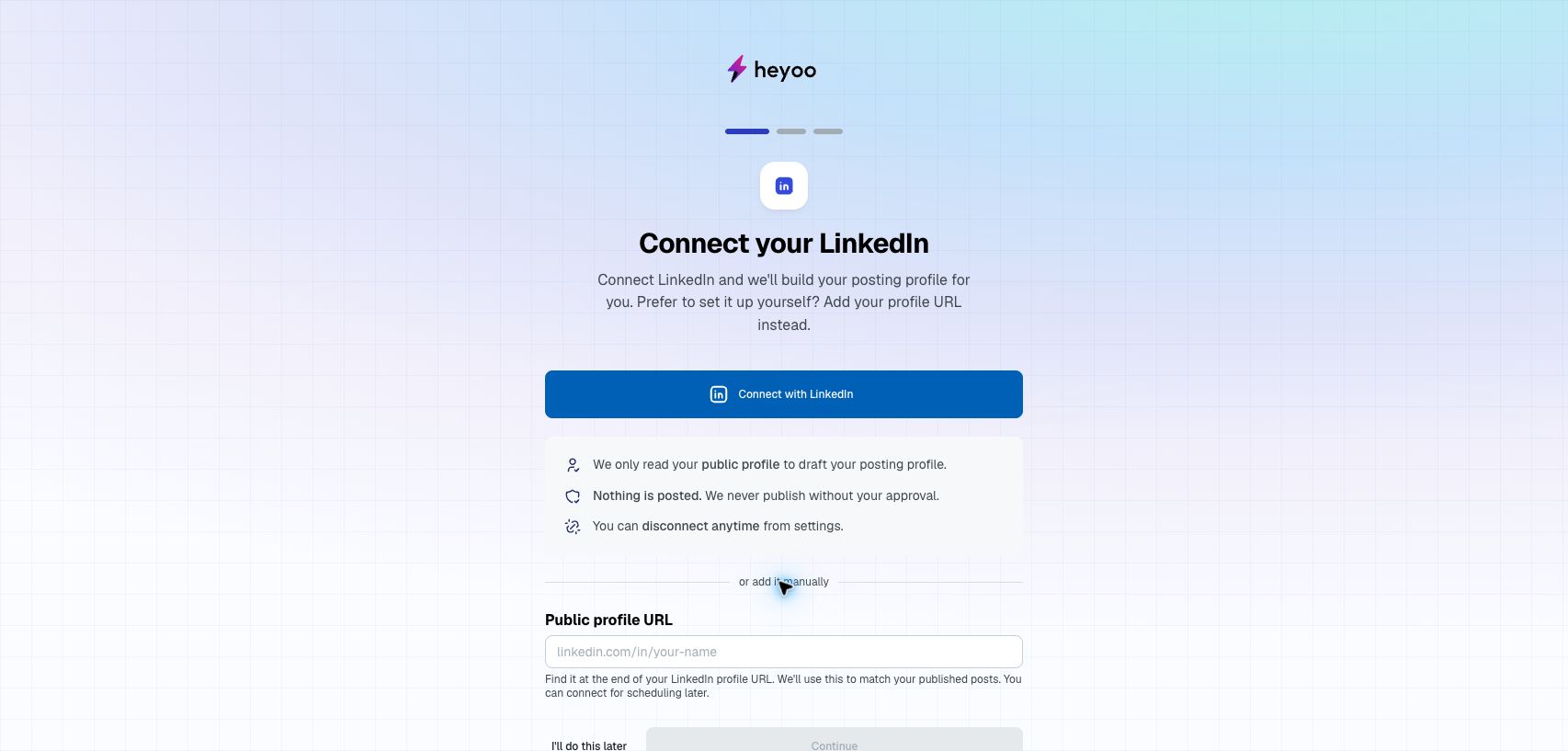
On Connect your LinkedIn, select Connect with LinkedIn to authorise Heyoo for the profile you want to use. You can also enter your public LinkedIn profile URL or select I’ll do this later. A public URL does not authorise Heyoo to schedule posts. Read what access you grant when you connect LinkedIn.
3. Tell Heyoo how you communicate
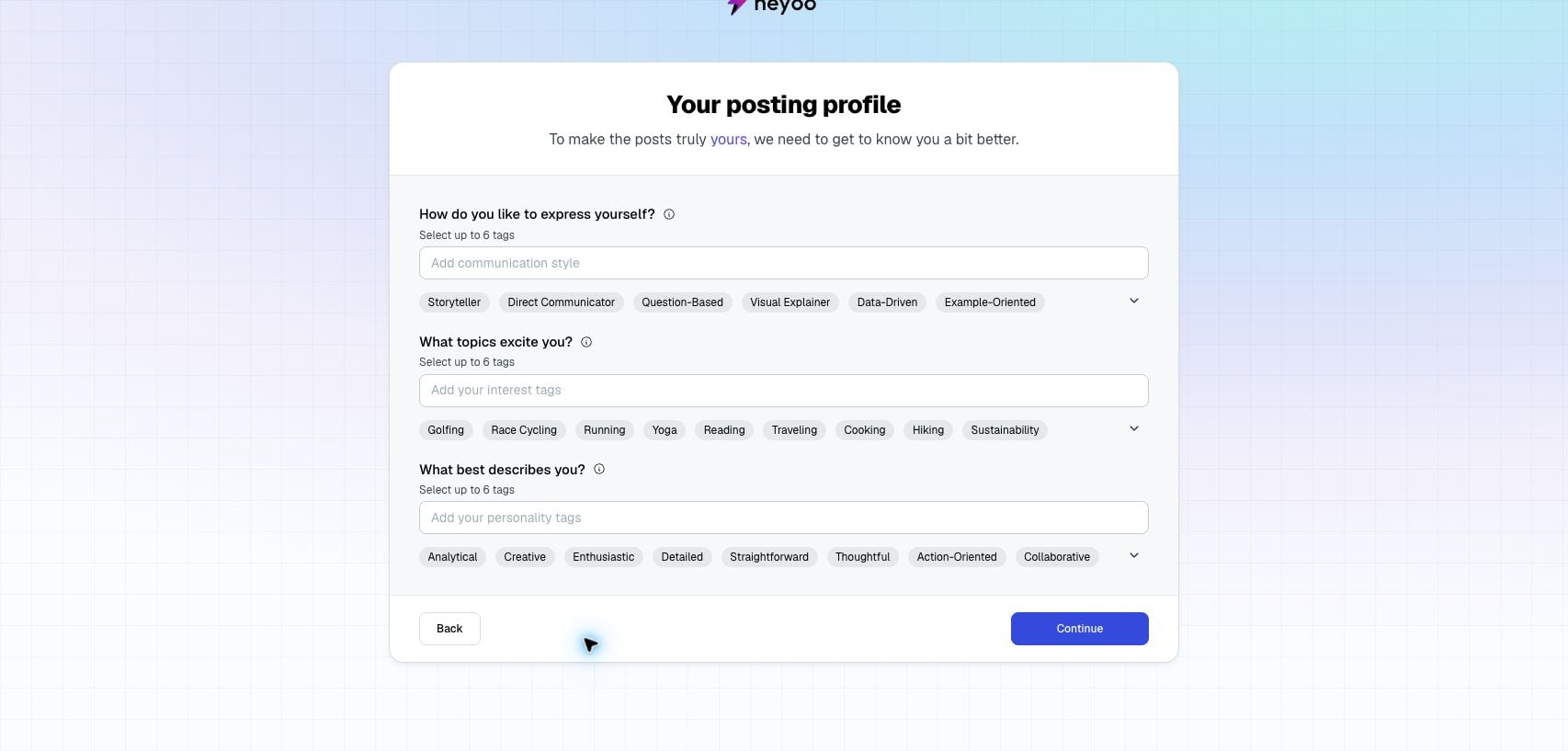
On Your posting profile, choose up to six tags in each of the three groups: how you express yourself, topics that interest you, and words that describe you. For example, select Conversational, Customer Experience and Curious if those fit. Choose Continue.
4. Set your language and writing style
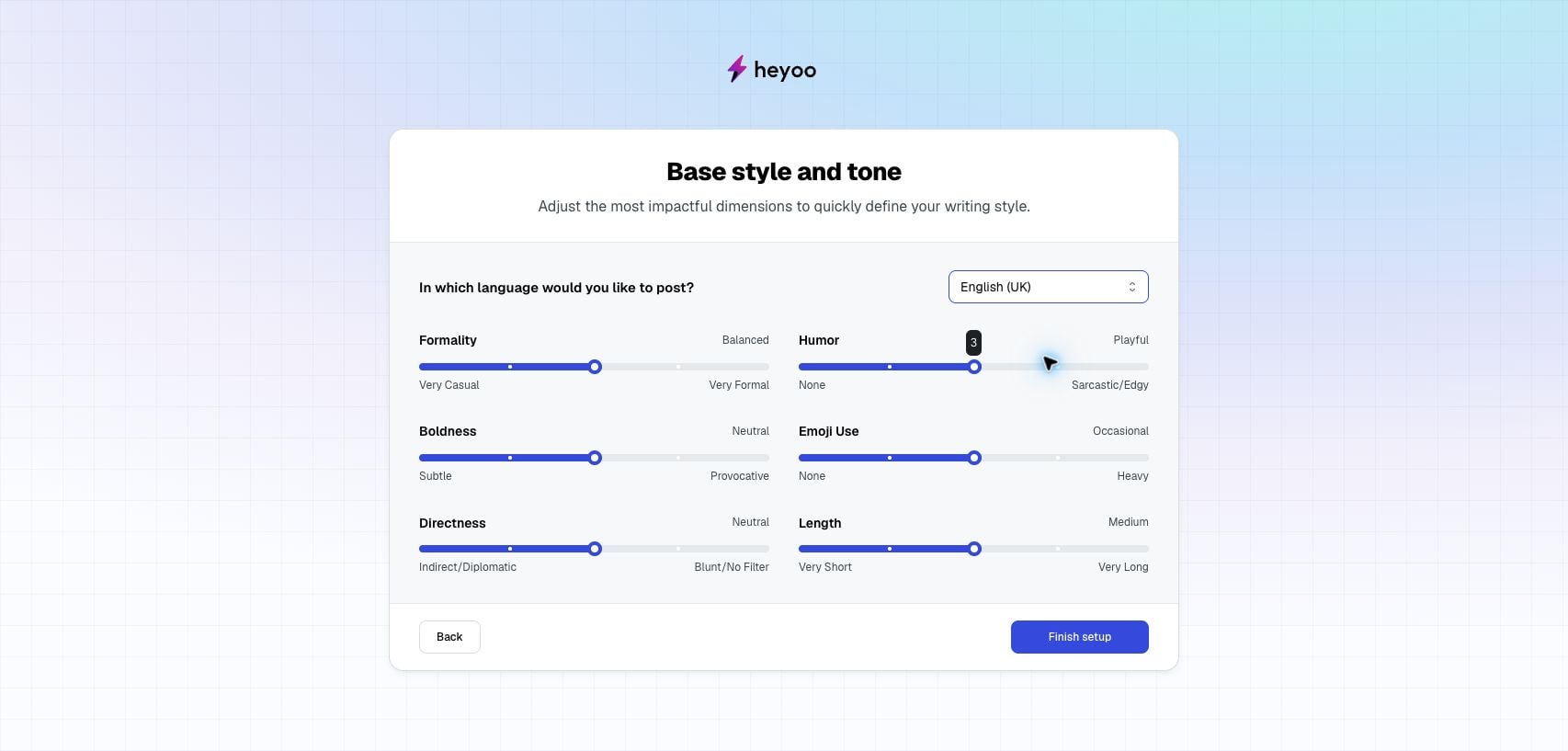
On Base style and tone, select the language you want to post in. You can adjust formality, humour, boldness, emoji use, directness and length. Choose Finish setup and wait for Heyoo to open your dashboard.
5. Check your setup and prepare a first post
If you deferred LinkedIn, the dashboard shows Connect LinkedIn. After connecting, check for your name and Connected in Posting Profile. You can refine your Tone of Voice, create your first post or share a campaign post.