
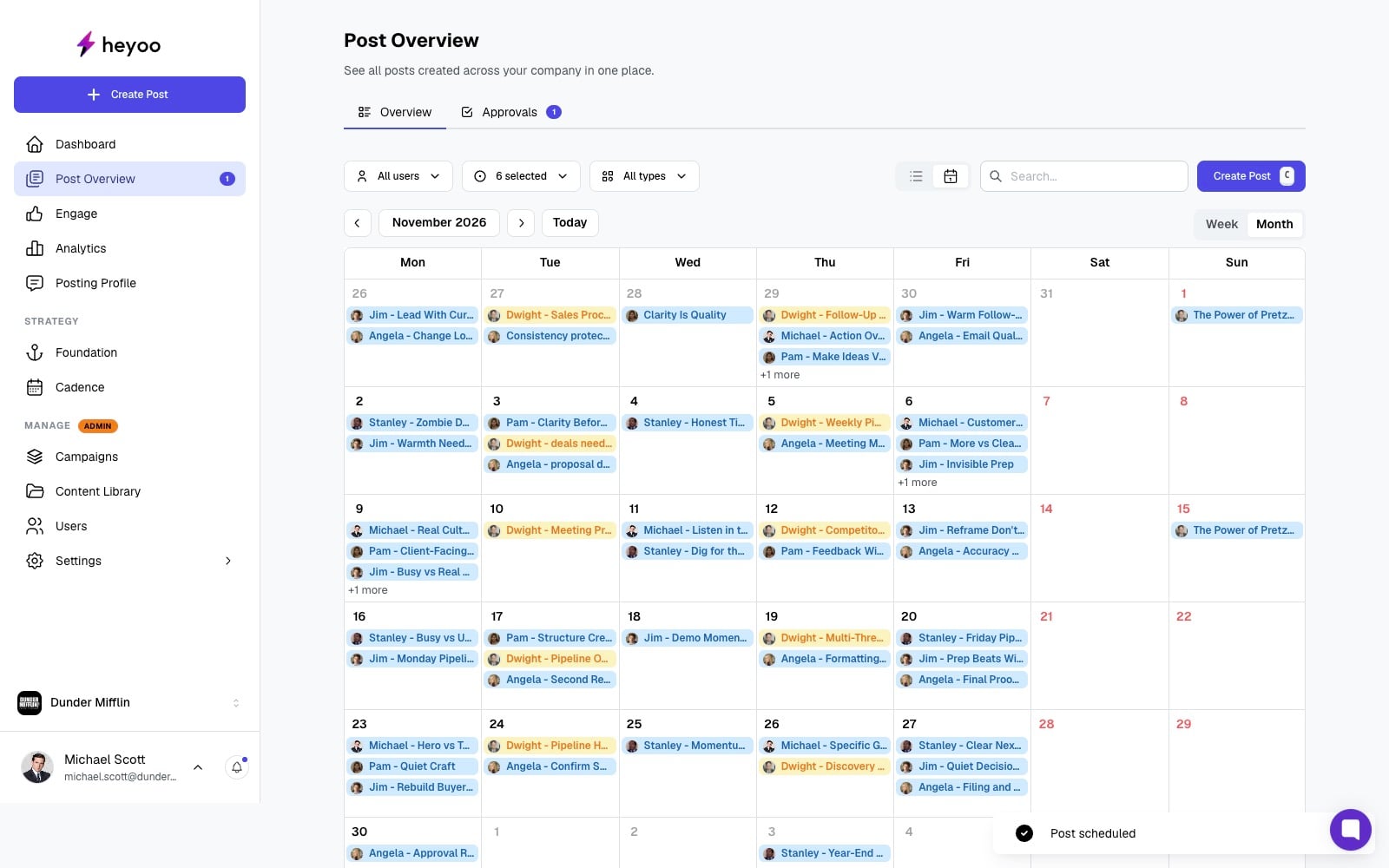
Open Post Overview and find the post. Read the status or error message. Before retrying, check the author’s LinkedIn profile to make sure the post did not already go live.
If Heyoo says the LinkedIn connection is missing or expired, open Posting Profile → About me or use the Reconnect LinkedIn prompt when shown. Follow the LinkedIn prompts and verify that the profile is connected.
If you prepared the post for a colleague, ask that colleague to reconnect their own LinkedIn account.
Reopen the failed post. Check the content and media, choose a new date and time, then select Schedule post. Confirm the updated status in Post Overview.
If the same error appears, contact Heyoo support with the error message, intended author and scheduled time. For upload issues, see Uploading video and media.
What to include when contacting support
Send the exact error text, the publishing time and time zone, the intended LinkedIn author, and whether the post contains an image, video or PDF. If the post already appears on LinkedIn, include its link so support can check the status without a duplicate retry.
Choose what to check from the error
LinkedIn connection missing or expired. Reconnect the profile that will publish the post, then reschedule it if the original time passed.
Media upload problem. Check the supported format and file limits before trying again. See the media troubleshooting guide.
Awaiting review. Check Post Overview → Approvals for the reviewer’s response before deciding whether to schedule the draft.
Check the result after retrying
In Post Overview, confirm the new scheduled time and the intended author. If it fails again, share the exact error and the scheduled time with Heyoo support so they can investigate the right post.