
Open Campaigns → New Campaign. Pick a template, start with Manual, or paste a link into Magic AI Campaign.
In Basics and Message, name the campaign, enter the facts people should know and describe the objective. Add prompt instructions if people should take a particular angle.
Add a destination link if relevant. Under Audience & schedule, choose the employee groups, dates and posting goal. Add approved visuals under Campaign Media.
Review your choices and save. Check the campaign and the audience before asking colleagues to share.
Open the campaign’s Analytics tab to see how the posts performed.
For the link-based workflow, see Creating a campaign from a URL.
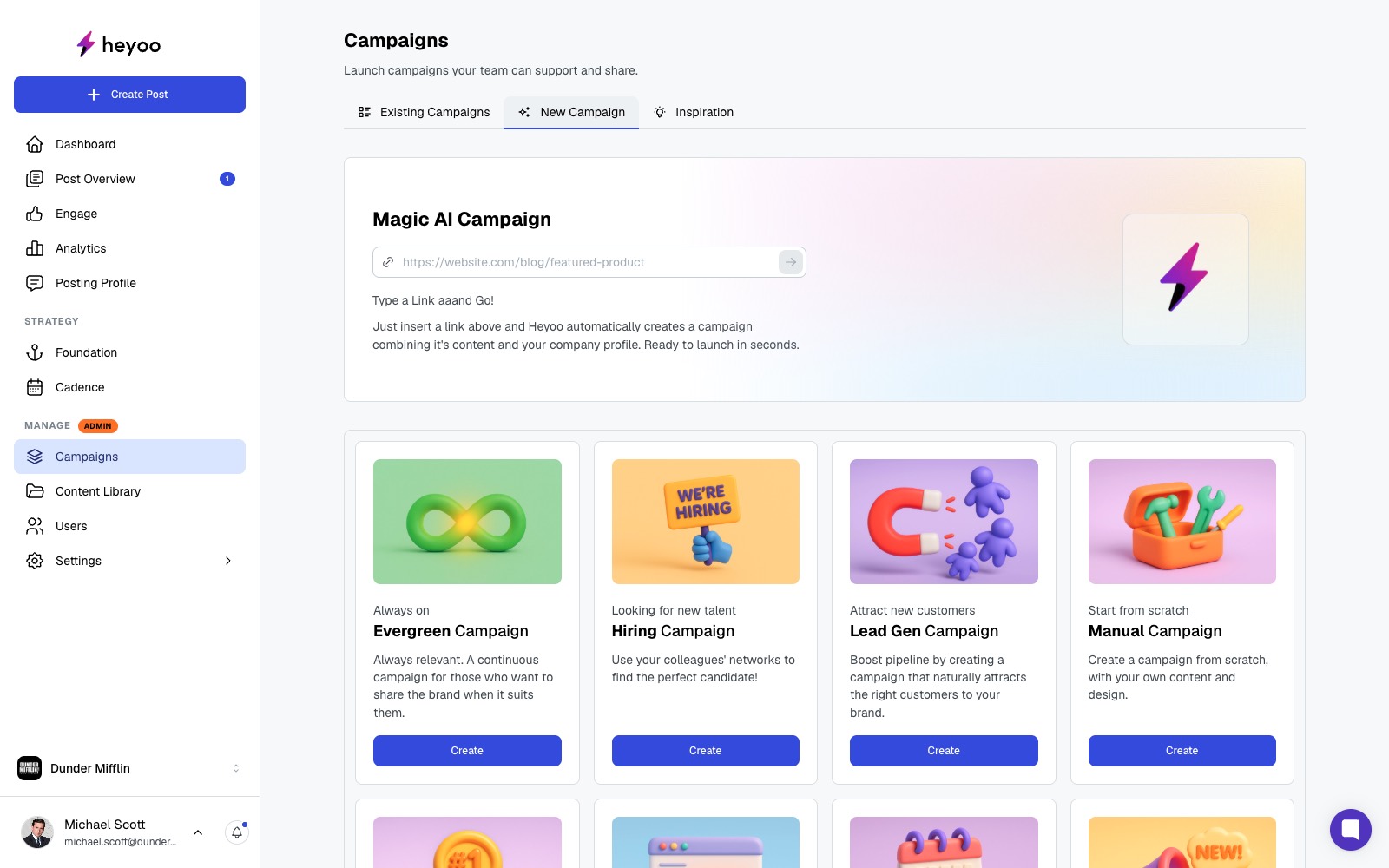
Use one brief for everyone, with room for personal angles
For an event campaign, give colleagues the date, venue and registration link, then offer a prompt such as “What conversation are you looking forward to?” Add approved media and check the audience and campaign dates. If tracking matters, configure the destination and UTM parameters before you share the campaign.
Prepare the material colleagues need
Start with one topic, a short description, a few verified facts and a clear objective. For an event, include the date, location and registration link. Add an approved visual and, if useful, give colleagues an angle they can adapt for their own audience.
Check the campaign from a participant’s perspective
Review the dates and employee groups before sharing the campaign. Make sure the destination link opens the right page and the visual suits the topic. Share the employee sharing guide so colleagues know where to find and personalise their suggestions.
After colleagues start posting, use the campaign’s Analytics tab to review activity against the posting goal.