Connecting Microsoft Teams with Heyoo allows you to keep employee advocacy front of mind without adding another tool to check. Once connected, Heyoo can automatically send notifications to a dedicated Microsoft Teams channel, so your team stays informed and engaged in real time.
With the Microsoft Teams integration, you can:
Get notified when new campaigns go live in Heyoo
See when colleagues publish posts, all in one shared Teams channel
Increase visibility and participation without manual follow-ups
Access to Microsoft Teams
Permission to create a workflow for a Teams channel
Admin access in Heyoo
Open Microsoft Teams and create or select the channel where you want to receive Heyoo notifications.
We recommend using a dedicated channel, for example:
Team: Employee Advocacy
Channel: Campaign notifications
This keeps Heyoo notifications easy to find and avoids unnecessary noise in other channels.
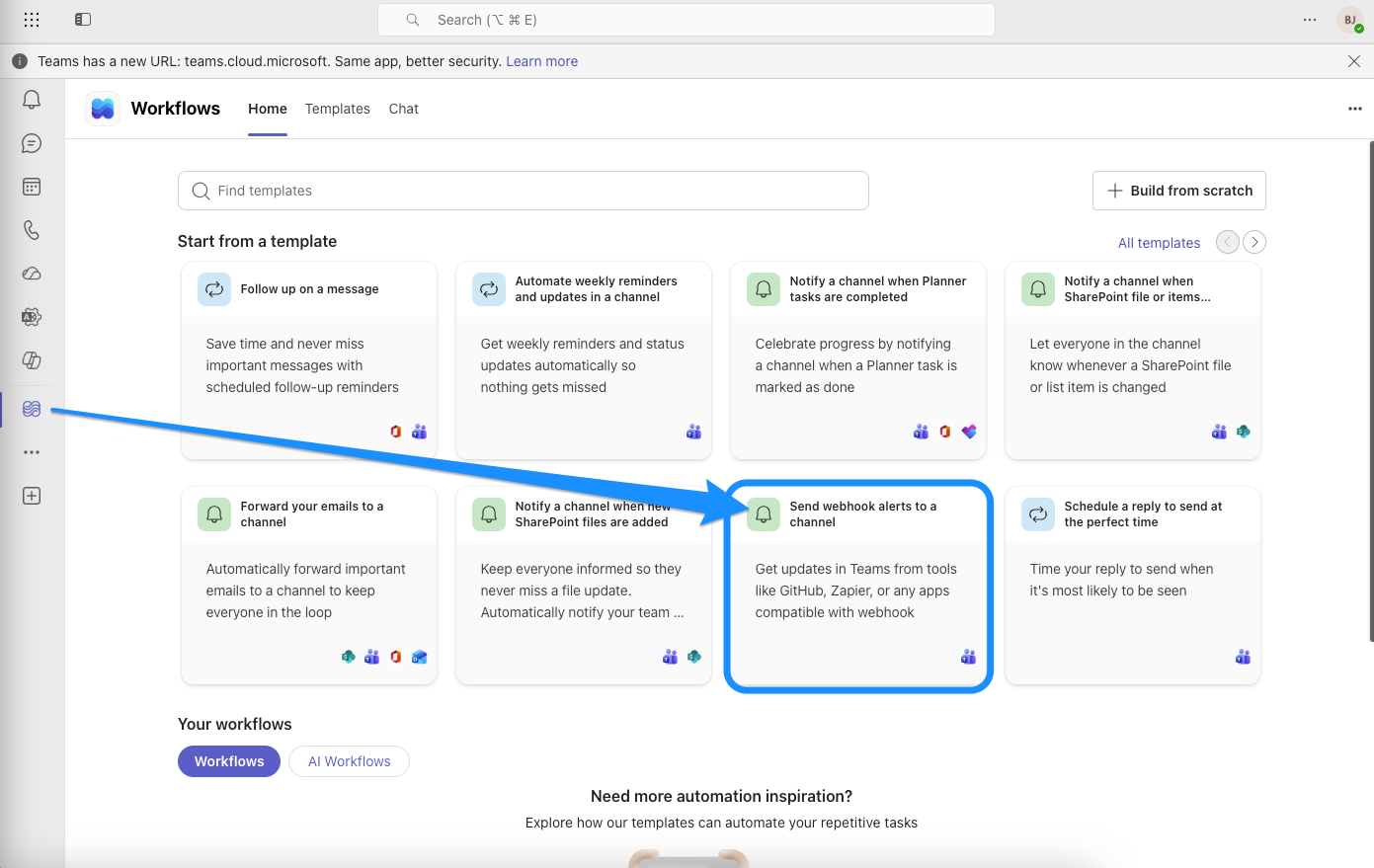
In Microsoft Teams, open Workflows from the left-hand sidebar.
Search for the template Send webhook alerts to a channel.
Select the template.
Choose the Team and Channel where you want Heyoo notifications to appear.
Click Save.
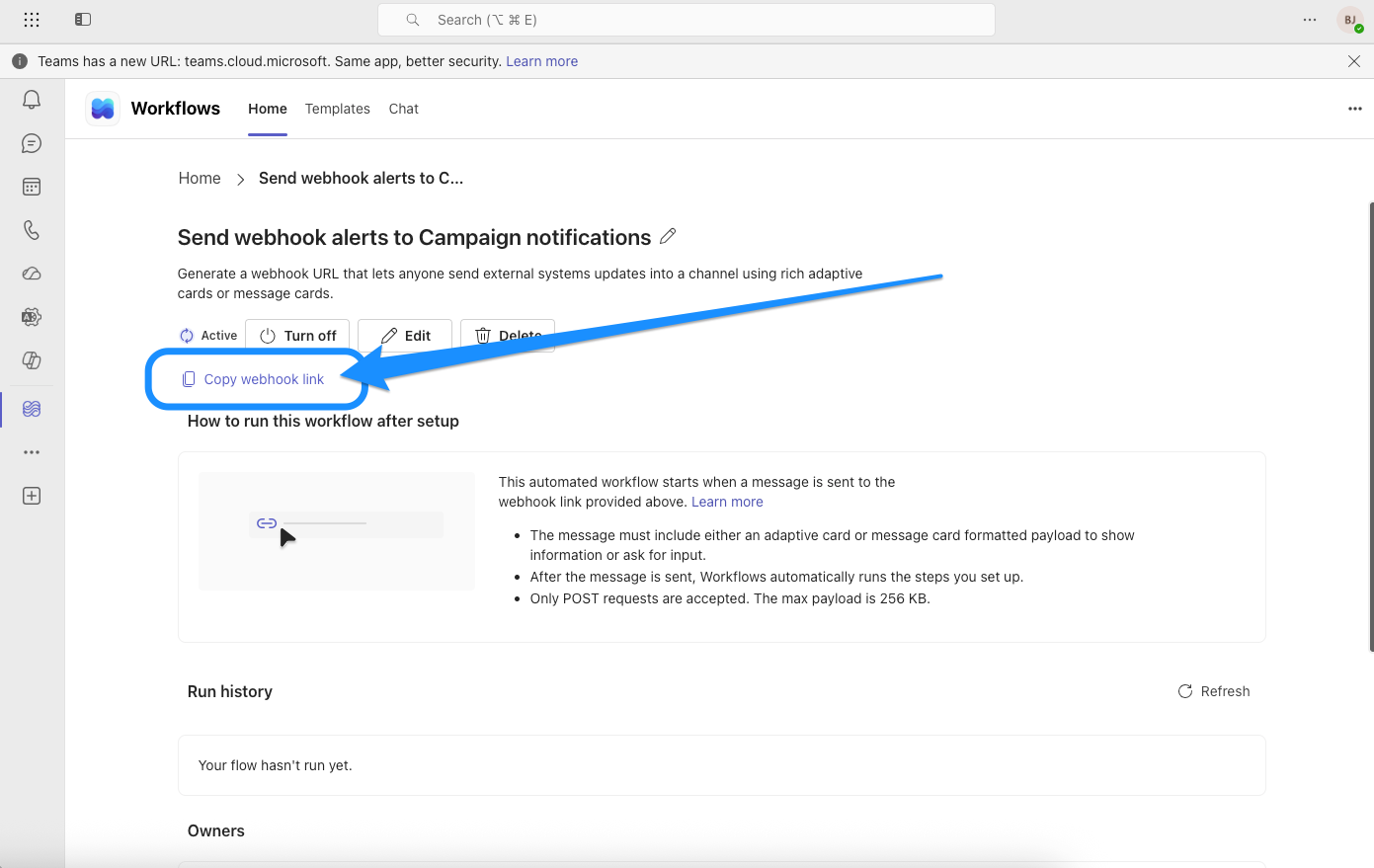
After the workflow is created, click Copy webhook link.
Keep the webhook URL handy. You will need it in the next step.
Microsoft’s official guide for this step can be found here:
https://learn.microsoft.com/en-us/microsoftteams/platform/webhooks-and-connectors/how-to/add-incoming-webhook?tabs=dotnet
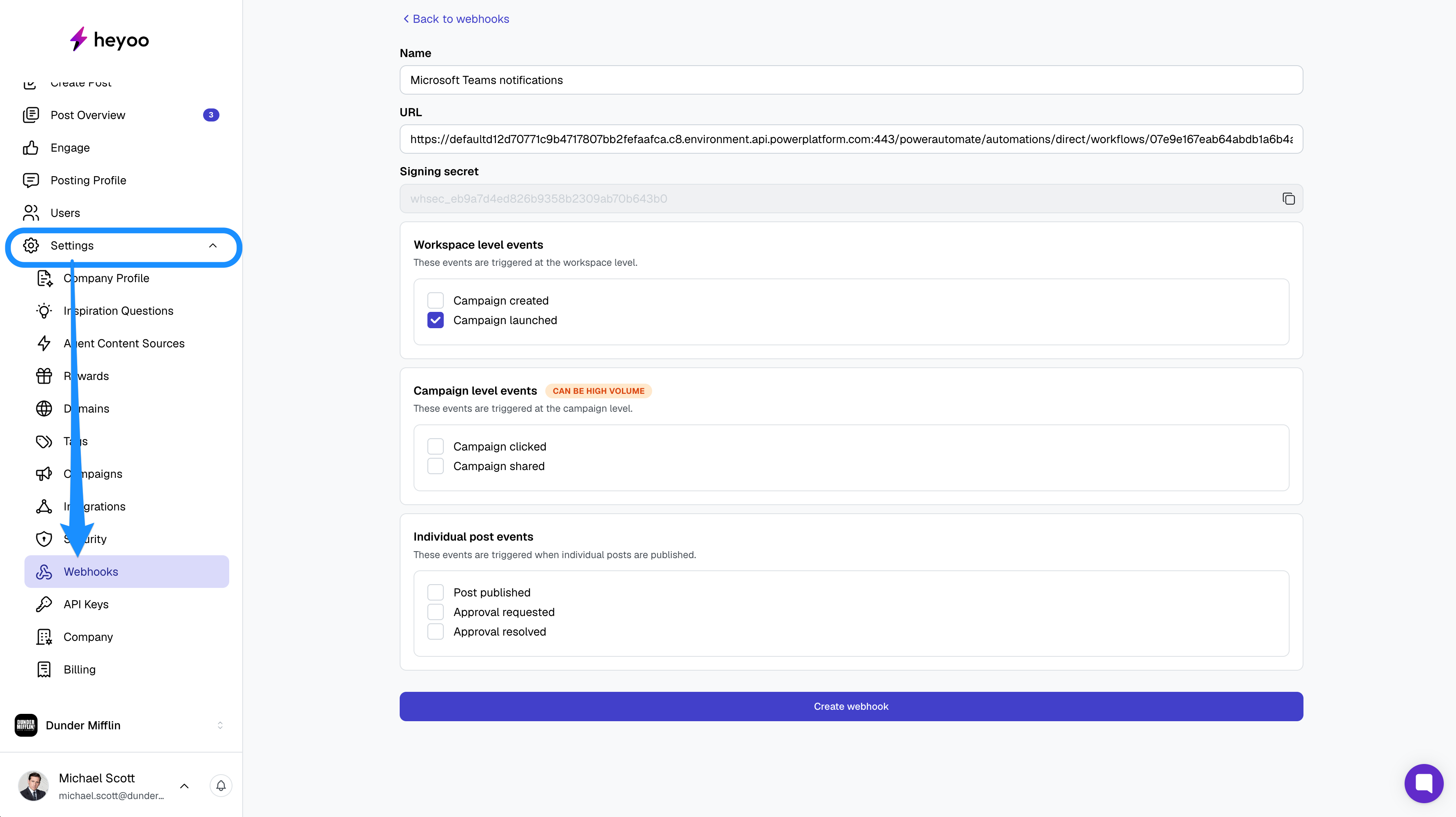
Log in to Heyoo as an admin.
Go to Settings > Webhooks.
Create a new webhook.
Paste the Microsoft Teams webhook URL you copied earlier.
Choose which events you want to receive notifications for, such as:
New campaigns created or launched
Colleague posts published (from a Campaign)
Colleague posts published (as a Thought Leader)
Click “Create Webhook”
Once created, Heyoo will start sending notifications directly to your selected Microsoft Teams channel.
Use a dedicated Teams channel for Heyoo notifications to avoid noise.
Invite marketing, comms and leadership stakeholders to the channel for shared visibility.
Combine Teams notifications with Heyoo’s built-in reminders to maximise engagement.
You can send a test-event form the Heyoo webhook to see if everything works!
If you have any issues setting up the integration or do not see notifications coming through, double-check that the webhook URL is correct and that the selected events are enabled in Heyoo.