Connecting Slack with Heyoo keeps employee advocacy visible where your team already works. Heyoo posts in a Slack channel of your choice, and sends employees a personal message when a post written for them needs their approval.
With the Slack integration, you can:
Let everyone know when a new campaign is ready to share
Announce new posts from your Company Pages and from colleagues
Let employees approve, reject or edit a post prepared for them, right from Slack
Admin access in Heyoo
Permission to add apps to your Slack workspace
A Slack channel for Heyoo notifications. We recommend a dedicated channel, for example #linkedin.
Log in to Heyoo as an admin.
Go to Settings > Integrations and open Slack.
Click Enable.
In Slack, choose the channel where Heyoo may post and click Allow.
You return to Heyoo, where the Slack notifications settings appear below the integration details.
Under Channel notifications, choose which messages are posted in the connected channel. Pick the Notification language for these messages: English, Dutch or German.
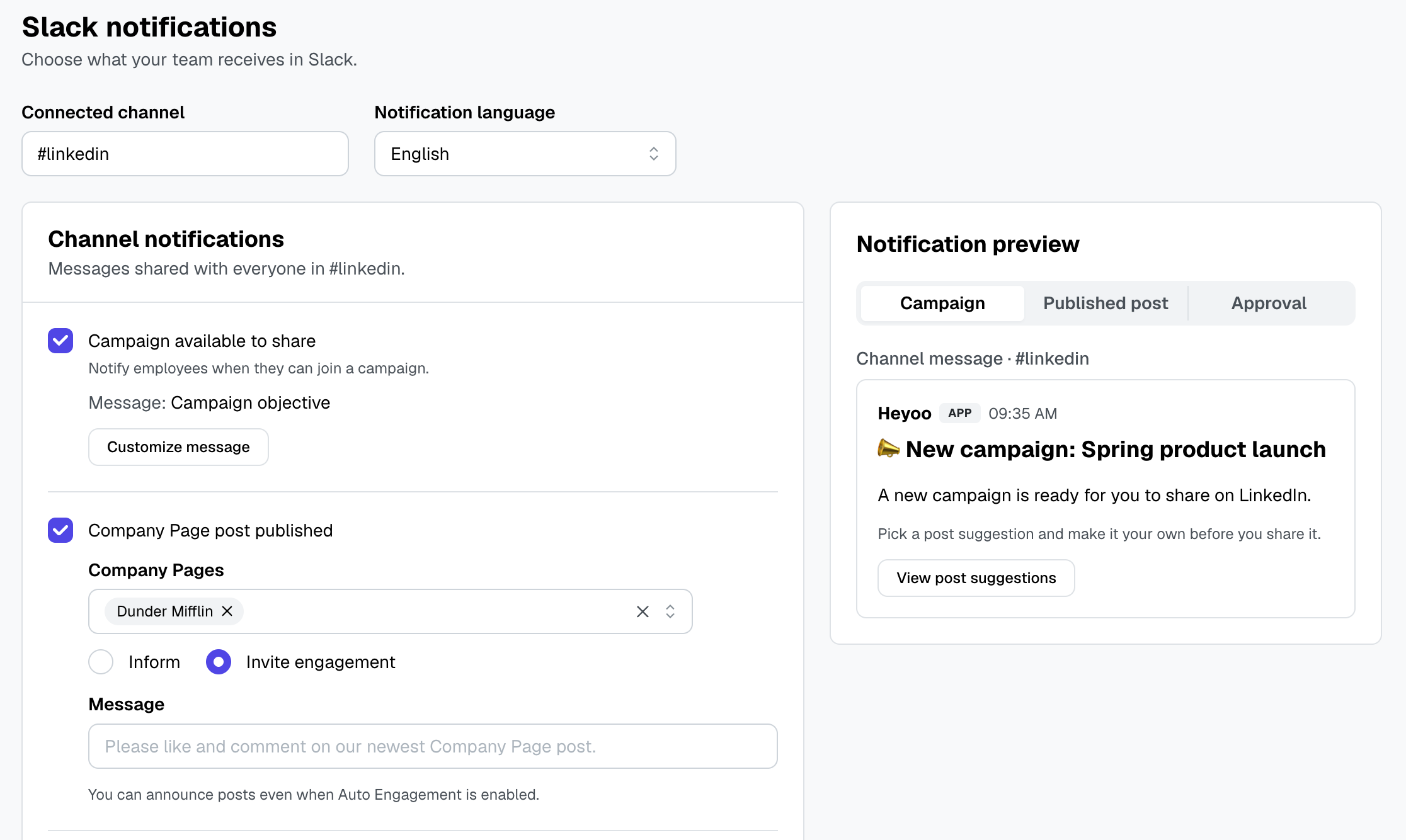
Campaign available to share: posted when a campaign starts and employees can share it. By default the message is the campaign objective. Click Customize message to write your own.
Company Page post published: announces new posts from your Company Pages. Choose specific pages, or leave the field empty for all Company Pages.
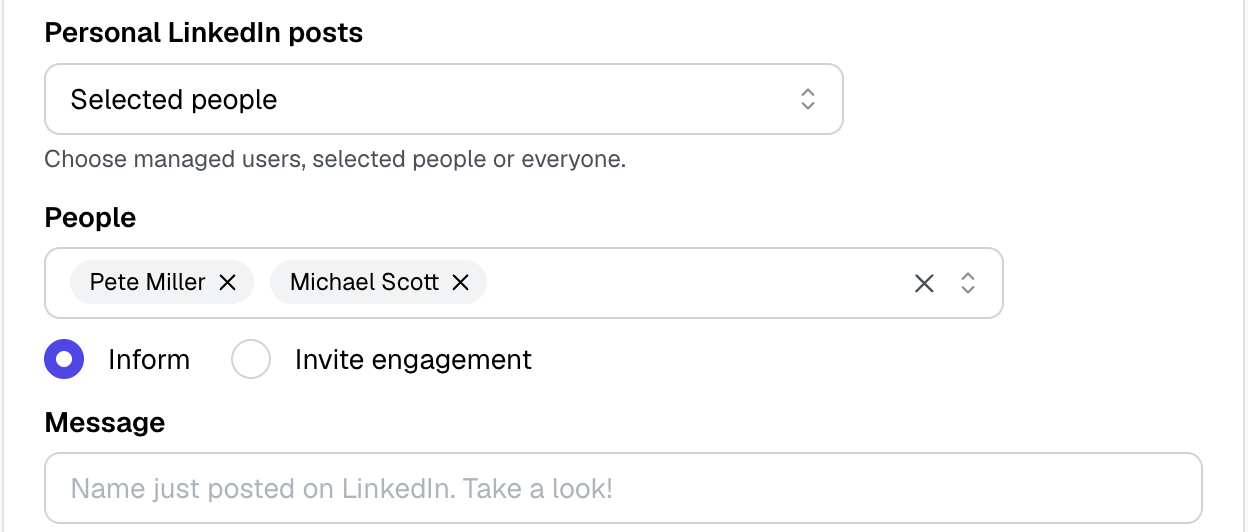
Personal LinkedIn posts: announces posts that colleagues publish on their own LinkedIn profile. Choose Off, Managed users, Selected people or All users.
For Company Page and personal posts, choose Inform to share that a post is live, or Invite engagement to ask colleagues to like and comment. You can replace the default text with your own message. Each post is announced once.
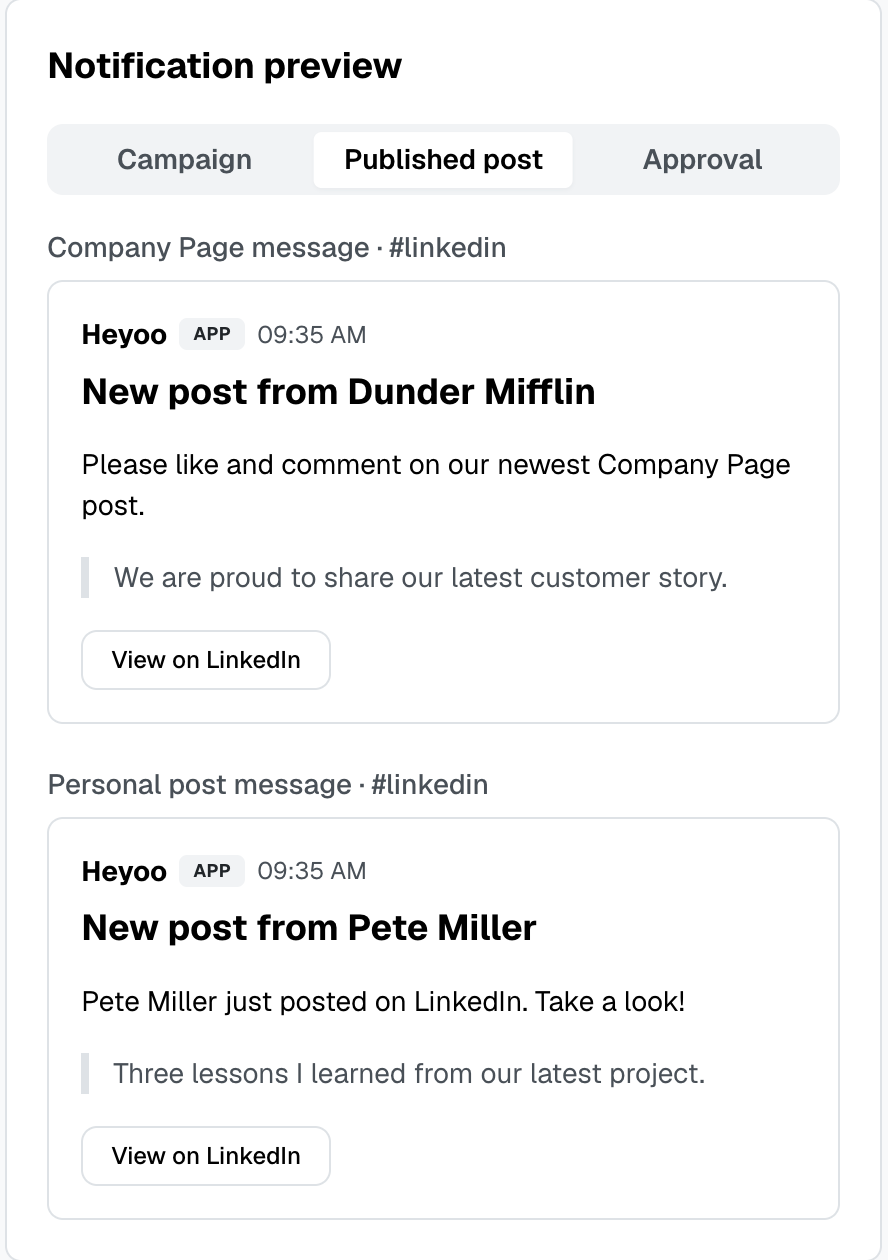
The Notification preview shows each message as it will look in Slack, in the language you chose. Switch between Campaign, Published post and Approval to see each one.
Click Save changes to apply your settings.
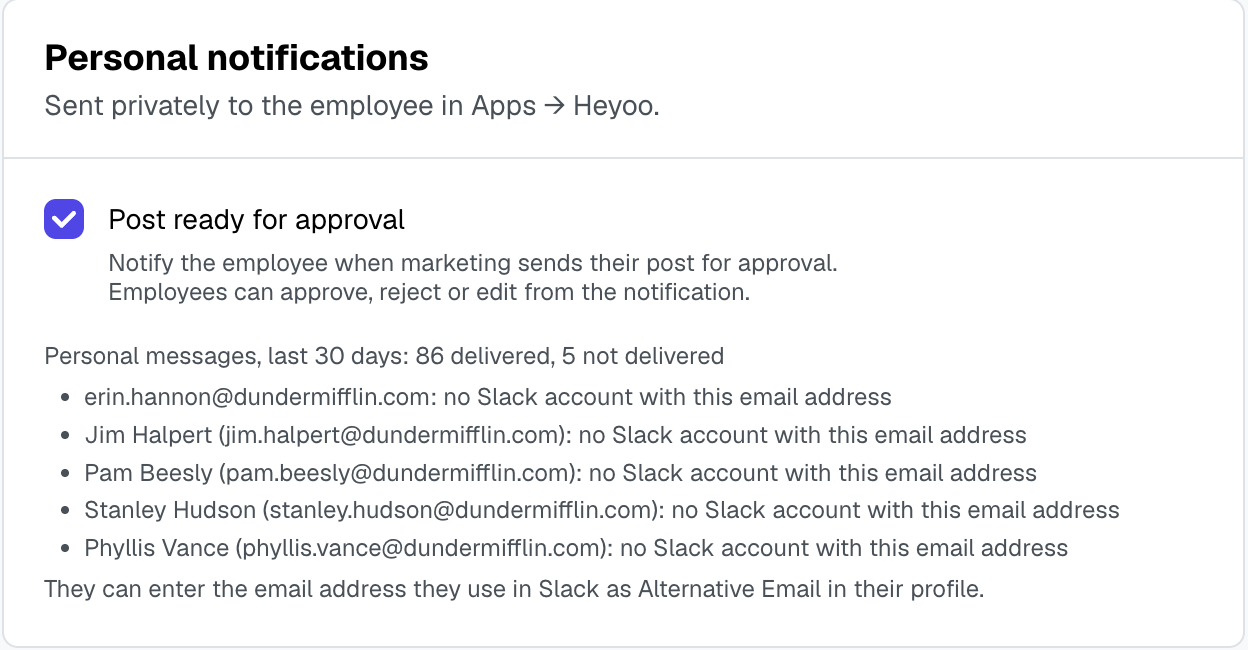
When marketing prepares a LinkedIn post for an employee and sends it for approval, the employee receives a personal message from the Heyoo app in Slack (Apps → Heyoo). Turn this on or off with Post ready for approval under Personal notifications. The message is in the employee's own language.
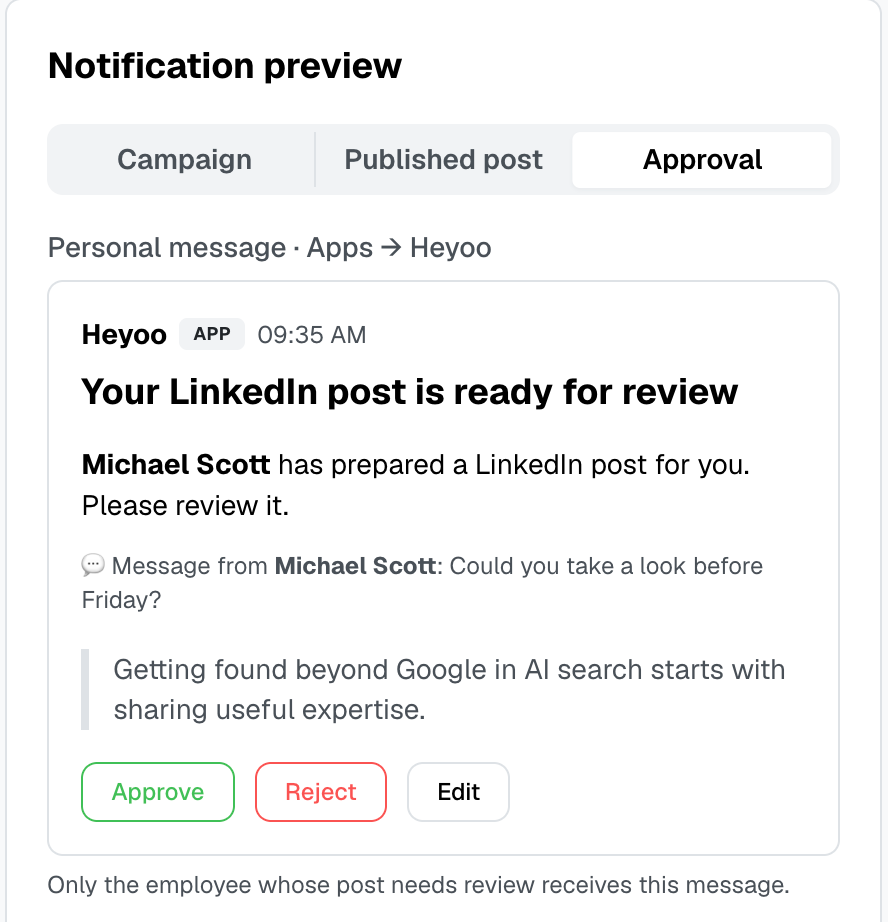
From the message, the employee can:
Approve: the post is approved and published at its scheduled time.
Reject: a window opens where they can add a reason for the person who prepared the post.
Edit: the post opens in Heyoo.
After they answer, the message shows the outcome. It is also updated when the request is answered in Heyoo or no longer needs an answer.
Good to know: Approve in Slack approves the text shown in the message. If the post was changed after the request, or its publish date has passed, the message asks the employee to open the post in Heyoo instead.
Heyoo finds each employee in Slack by their email address. If someone uses a different email address in Slack, Heyoo can't reach them.
Under Personal notifications, admins see how many personal messages were delivered in the last 30 days, and who could not be reached and why.
The employee also sees a notice in their profile and a notification in Heyoo. Admins receive at most one summary notification per day.
To fix it, the employee enters the email address they use in Slack as Alternative Email in their profile. The next messages go to that address.

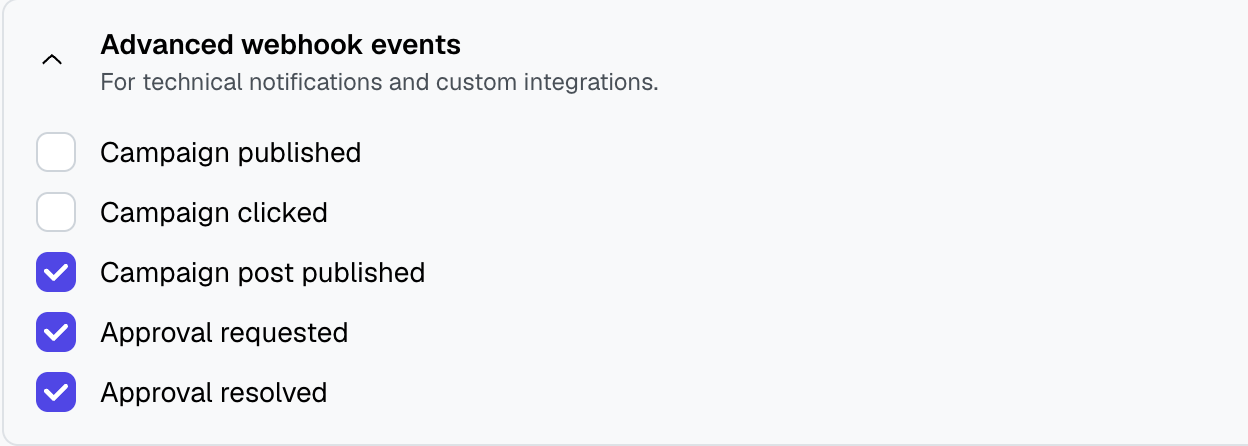
For technical notifications, open Advanced webhook events and select extra events to send to the same channel: Campaign published, Campaign clicked, Campaign post published, Approval requested and Approval resolved. See the webhook documentation for what each event contains.
Use a dedicated channel for Heyoo notifications to avoid noise.
Use Invite engagement for Company Page posts to get colleagues to like and comment early.
Ask employees whose Slack email differs from their work email to add it as Alternative Email before you send posts for approval.
Channel messages depend on your plan. If your plan doesn't include them, the settings page says so. Personal messages are still sent.
If notifications don't come through, check that Slack is still connected under Settings > Integrations > Slack and that the messages are switched on in the Slack notifications settings.