The Knowledge Base lets you give Heyoo's AI your own source material (company documents, brand guidelines, product names & descriptions, industry jargon, and more) so post suggestions are grounded in your company’s facts instead of generic assumptions.
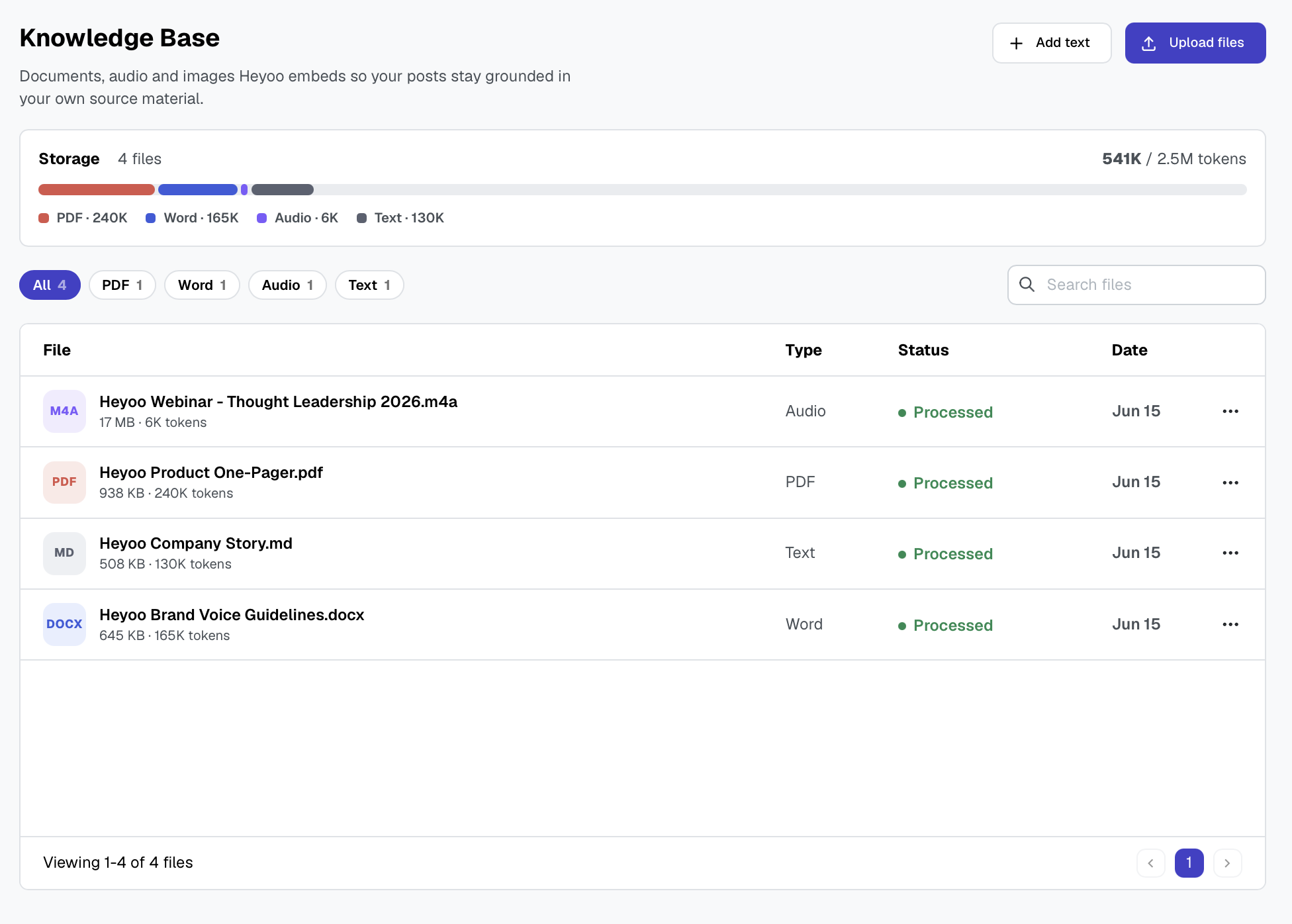
You upload your material once. From then on, every relevant post draft can draw on it automatically, without you having to copy-paste company context into each prompt.
When a user generates a LinkedIn post, Heyoo automatically searches your Company Knowledge Base for the passages that are most relevant to what the user is writing, and feeds them to the AI as source material. The result is content that reflects your real product names & descriptions, industry jargon, correct abbreviations, positioning, key figures, and more.
The Knowledge Base is managed by workspace admins under Settings > Knowledge Base, and is private to your workspace.
Accuracy: the AI references your actual facts (product details, industry jargon, abbreviations) instead of inventing plausible-sounding ones.
On-brand content: feed it your brand guidelines and additional company tone-of-voice docs
Less repetitive prompting: context lives in one place, so you don't re-explain your company in every prompt.
Reuse existing material: turn whitepapers, webinars, podcasts, and slide decks into raw material for content instructions.
Upload a file from Settings > Knowledge Base, using drag-and-drop or the file picker.
Processing happens automatically in the background. Heyoo extracts the text (and transcribes audio or reads images), then indexes it so it can be searched by meaning. You'll see a live status: Pending > Processing > Ready.
Use: once an item shows Ready, it's available to be used for post generations. Just write posts as usual; relevant material is pulled in automatically behind the scenes.
You can search items, edit text items, archive them (hides them from the AI but keeps the data), or delete them permanently at any time. If an item fails to process, use Reprocess to try again.
Type | Formats | How it's processed |
Text is extracted page by page | ||
Word | .docx | Text is extracted |
Text | .txt, .md (Markdown) | Used as-is |
Audio | .mp3, .wav, .m4a, .mp4, .webm, .ogg, .flac | Automatically transcribed to text |
Images | .jpg, .png, .gif | Described, and any text in the image is read (OCR) |
Note: Video files are not supported yet.
Each individual file can be up to 25 MB, on every plan.
Your total Knowledge Base storage is measured in tokens (roughly 1 token ≈ 4 characters of text). This is a persistent storage cap, not a monthly allowance: deleting an item immediately frees up its storage. Your current usage is always shown on the Knowledge Base page.
Plan | Knowledge Base limit | Roughly equivalent to |
Free | 50,000 tokens | ~4 MB of text |
Team | 500,000 tokens | ~40 MB of text |
Growth | 2,500,000 tokens | ~200 MB of text |
Professional | 10,000,000 tokens | ~800 MB of text |
Enterprise | Unlimited | No fixed cap |
The "equivalent" figures refer to extracted text, not raw file size. A media-heavy 25 MB PDF may contain only a few pages of text, while a dense text file uses far more of your storage. If you reach your limit, free up space by deleting items, or upgrade your plan for more storage.
Do I need to re-upload files when I generate a post?
No. Once an item is Ready, it's used automatically whenever it's relevant.
Why doesn't the AI use my document?
The AI only pulls in passages that are genuinely relevant to the post you're writing. If a document isn't being used, make sure it's marked Ready (not still processing, archived, or failed), and that its content actually relates to your topic.
What does archiving do?
Archiving removes an item from the AI's reach without deleting it. Use it to temporarily retire outdated material; you can restore or permanently delete it later.
An item failed to process. What now?
Use the Reprocess option on the item. Failures are usually temporary (for example a scanned PDF with no readable text, or a very large file). If it keeps failing, check that the file opens correctly and contains actual text or clear audio/imagery.
Is my data shared with other workspaces?
No. Each workspace's Knowledge Base is fully isolated and only used to ground content within that workspace.
The Knowledge Base is managed by admins under Settings > Knowledge Base and is private to your workspace.
Items are only used once their status is Ready.
Each file can be up to 25 MB; total storage depends on your plan.
Storage is a persistent cap, so deleting items frees up storage immediately.
Relevant material is injected automatically; you never have to paste it into a prompt.